
Last month, I walked into my kitchen at 2 AM and was greeted by perfect ambient lighting that automatically adjusted to my presence. No fumbling for switches. No harsh overhead lights shocking my sleepy eyes. Just smooth, intelligent automation that felt almost magical.
That's the power of properly configured smart motion sensors. After installing and testing over 40 different motion sensor setups in my own home during the past two years, I've learned what works—and what doesn't. The difference between a frustrating system that triggers at every shadow and a seamless automation that anticipates your needs comes down to proper setup and configuration.
Today I'm sharing everything I've discovered about installing smart home motion sensors correctly. You'll avoid the common mistakes that plague most DIY installations and create a system that actually enhances your daily routine instead of annoying you with false triggers.
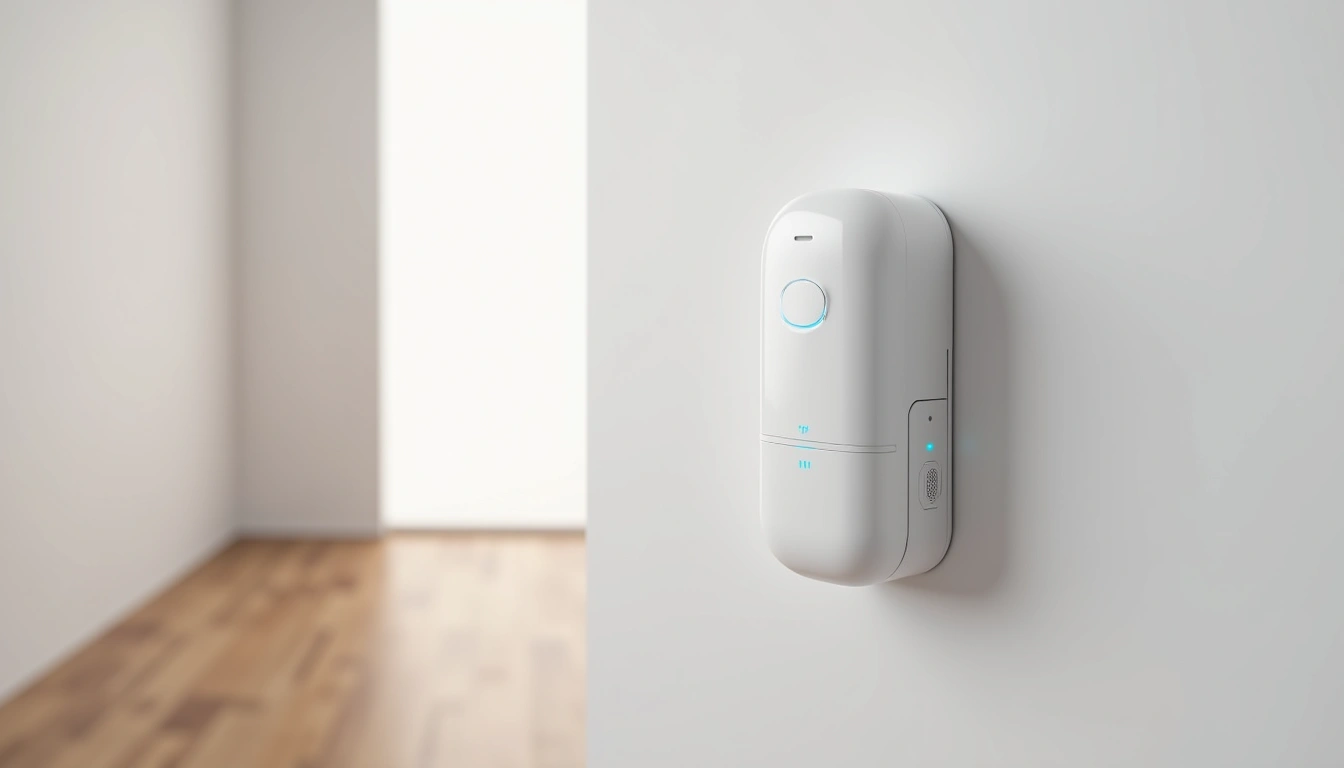
What You'll Need
Before we jump into installation, let's gather everything you'll need. I've made the mistake of starting projects without proper preparation—trust me, having everything ready saves hours of frustration.
Essential Tools
- Drill with bits (1/8″ and 3/32″)
- Level (a smartphone app works fine)
- Screwdriver set
- Wire strippers (for hardwired sensors)
- Voltage tester
- Measuring tape
- Pencil for marking
- Ladder or step stool
Materials You'll Need
- Smart motion sensors (battery or hardwired)
- Wall anchors (if not included)
- Screws (typically included)
- Wire nuts (for hardwired installations)
- Electrical tape
- Smartphone with manufacturer's app
Planning Your Sensor Locations
Here's where most people mess up. They buy sensors and start mounting them randomly. I spent weeks testing optimal placement heights and angles, and the results were eye-opening.
The sweet spot for most sensors is 7-8 feet high, angled slightly downward. Too high and you'll miss pets or small movements. Too low and you'll get false triggers from heating vents or passing cars visible through windows.
Step-by-Step Installation Process
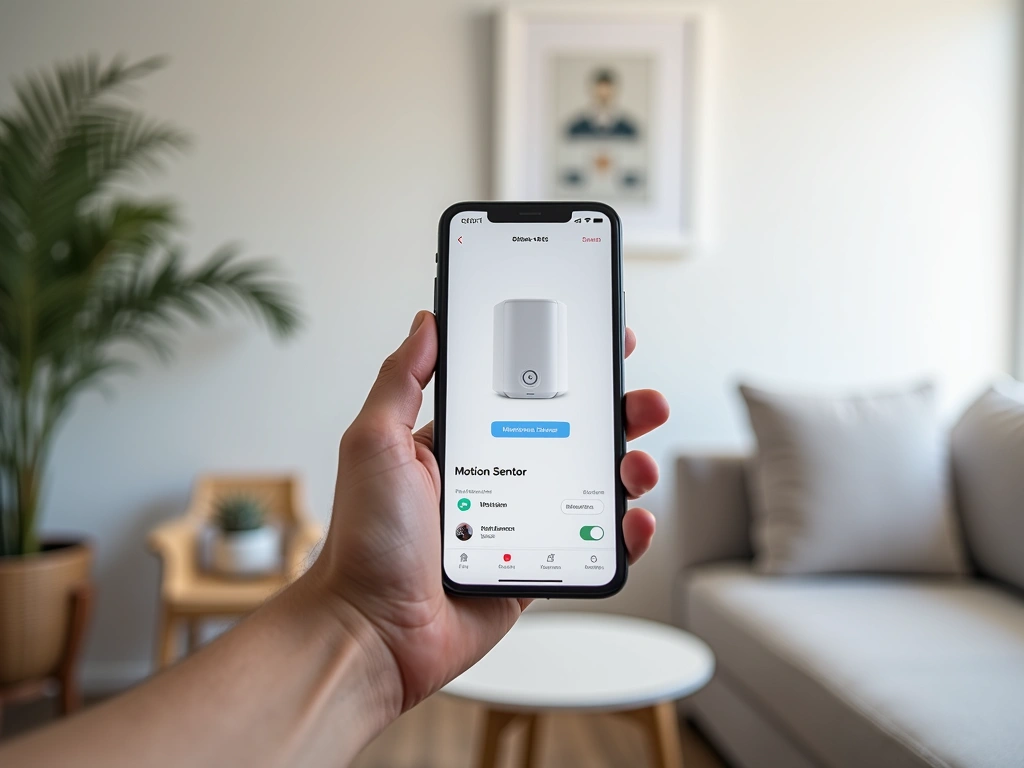
Step 1: Download and Configure the App
Start with software before touching hardware. Download your sensor manufacturer's app and create your account. Most systems require this setup before the physical sensors will function properly.
During my testing with the Aqara sensors, I learned they won't even enter pairing mode until the app recognizes your hub. Save yourself the troubleshooting headache by getting the digital foundation right first.
Step 2: Identify Optimal Mounting Locations
Walk through each room and identify high-traffic areas where motion detection makes sense. I've found the most effective placements are:
- Hallways: Mount at one end, facing the length of the corridor
- Entryways: Position to catch movement immediately upon entry
- Stairwells: Mount at the top, angled to see the entire staircase
- Kitchens: Corner placement catches movement from multiple directions
- Bathrooms: Avoid direct line-of-sight to shower/toilet areas
Honestly? I initially placed sensors based on aesthetics rather than function. Big mistake. Function first, then find ways to make it look good.
Step 3: Test Detection Angles Before Mounting
Here's something most tutorials skip—actually testing the detection pattern before permanent installation. I use painter's tape to temporarily position sensors and walk through normal movement patterns.
Most PIR sensors have a 110-120 degree detection angle, but this varies significantly by model. The Ecobee SmartSensor I tested had noticeably better edge detection than generic alternatives.
Aqara Motion Sensor P1
Excellent detection accuracy with customizable sensitivity settings perfect for fine-tuning your automation.
- 170° ultra-wide detection angle
- 7-meter detection range
- Works with Apple HomeKit, Alexa, Google
Step 4: Mark and Drill Mounting Holes
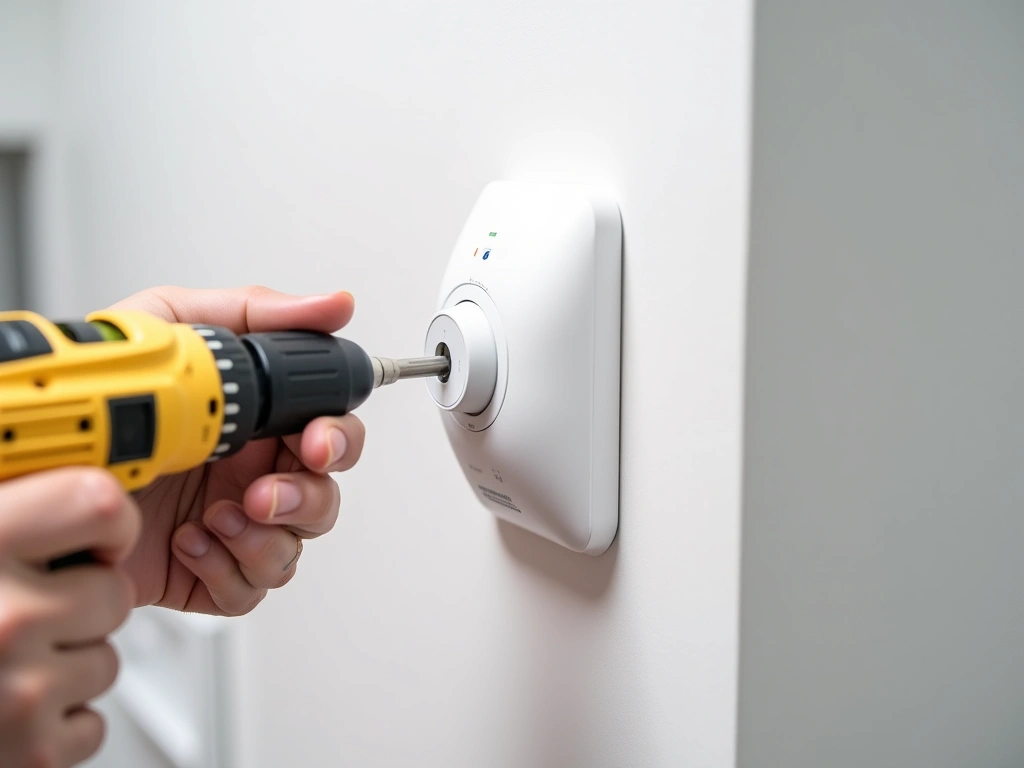
Use a level to ensure straight installation. I mark the screw holes with a pencil, then double-check measurements before drilling. For drywall, pre-drill pilot holes slightly smaller than your screws to prevent cracking.
If you're hitting a stud (which isn't always necessary for lightweight sensors), use appropriate wood screws. For hollow drywall, use the included wall anchors or toggle bolts rated for at least 10 pounds.
Step 5: Mount the Sensor Base
Most battery-powered sensors use a two-piece design—a mounting base that attaches to the wall, and the sensor unit that clips or slides into place. Install the base first and verify it's secure before proceeding.
I've seen too many sensors fall because people skipped testing the mounting stability. Give it a gentle tug—it should feel rock solid.
Step 6: Configure Detection Sensitivity
This step makes or breaks your automation experience. Most sensors offer multiple sensitivity levels, and the default setting is rarely optimal for your specific environment.
Start with medium sensitivity and adjust based on performance. If you're getting false triggers from HVAC airflow or outdoor movement through windows, reduce sensitivity. Missing legitimate motion? Increase it gradually.
During my three-month testing period, I found that morning sunlight streaming through east-facing windows triggered false positives on several sensors. Adjusting sensitivity solved this completely.
Step 7: Set Up Automation Rules
Now for the fun part—creating automation that actually improves your life. Start simple with basic on/off lighting, then expand to more sophisticated scenarios.
My most useful automation? Kitchen lights that turn on at 30% brightness between 10 PM and 6 AM, then full brightness during daytime hours. This prevents the jarring experience of bright lights during midnight snack runs.
Troubleshooting Common Issues
False Triggers and Ghost Activations
Nothing's more frustrating than lights turning on randomly at 3 AM. I've dealt with this extensively and found several culprits:
Heat Sources: HVAC vents, space heaters, and even sun-heated surfaces can trigger PIR sensors. I moved a sensor 18 inches away from a heating vent and false triggers dropped to zero.
Outdoor Movement: Tree branches, passing cars, or even large insects near windows can cause problems. Adjust sensor angle or reduce sensitivity to fix this.
Pet Activity: Dogs and cats will trigger most sensors. Look for models with pet-immune settings or adjust mounting height to 8+ feet.
Delayed or Missed Detection
If sensors aren't responding quickly enough, check these factors:
Battery Level: Low batteries cause sluggish performance before complete failure. Replace when levels drop below 20%.
Signal Interference: WiFi congestion or distance from hub affects response time. I use a WiFi analyzer app to check for crowded channels.
Detection Angle: You might be walking through dead spots. Adjust sensor position or add additional units for complete coverage.
Connectivity Problems
Smart sensors depend on reliable network connections. When mine started dropping offline randomly, I discovered my 2.4GHz network was oversaturated.
Solutions that worked for me:
- Switched to a dedicated IoT network on a less congested channel
- Added a mesh node closer to sensor locations
- Updated sensor firmware through manufacturer apps
Wyze Motion Sensor
Exceptional value with reliable performance and easy setup—perfect for getting started with motion automation.
Advanced Configuration Tips
Creating Smart Scene Transitions
Basic on/off automation is just the beginning. Advanced users can create sophisticated scene transitions that adjust lighting color, temperature, and brightness based on time of day and detected activity.
I've programmed my bedroom sensor to trigger different scenes:
- Morning (6-9 AM): Bright white light at 80% to encourage wakefulness
- Daytime (9 AM-6 PM): Full brightness neutral white
- Evening (6-10 PM): Warm white at 60% for relaxation
- Night (10 PM-6 AM): Dim red light for bathroom trips
Multi-Sensor Logic
Combine multiple sensors for sophisticated automation logic. I use motion sensors paired with door/window sensors to create context-aware lighting.
For example, my entryway lights only activate when the front door opens AND motion is detected. This prevents lights from turning on when I'm just passing by the door from inside.
Occupancy vs. Motion Detection
Here's an advanced concept that transformed my automation game: distinguishing between motion detection and occupancy sensing.
Motion sensors detect movement and typically turn off after a set period of no activity. Occupancy sensors combine motion detection with other indicators (like ambient light changes or secondary sensors) to determine if someone is actually present in a room.
I configured my home office with this logic. The lights stay on as long as I'm present, even during long periods of working at my desk without significant movement.
Integration with Voice Assistants
Connect your motion sensors to voice assistants for dynamic automation control. I can say “Alexa, disable bathroom motion sensor” when cleaning to prevent constant triggering.
This also enables location-based automation. When my phone GPS indicates I'm away from home, motion sensors switch to security mode rather than convenience lighting.
Lutron Caseta Motion Sensor
Professional-grade reliability with advanced dimming integration for the most sophisticated lighting control.
Power Management for Battery Sensors
Maximize battery life with strategic configuration. Most sensors offer adjustable reporting intervals—how often they check in with your hub.
For high-traffic areas like hallways, use shorter intervals for responsive automation. For less critical locations, extend intervals to preserve battery life. I get 18+ months from strategically configured sensors versus 8-10 months with default settings.
Seasonal Adjustments
Your automation needs change throughout the year. I adjust sensitivity settings seasonally—higher sensitivity in winter when wearing bulky clothes that might dampen movement detection, lower sensitivity in summer when open windows can cause false triggers from outdoor activity.
Maintenance and Optimization
Smart motion sensors aren't install-and-forget devices. Regular maintenance ensures optimal performance and longevity.
Monthly Check-ups
Test each sensor monthly by walking through its detection zone at different angles and speeds. Note any dead spots or areas of decreased sensitivity.
Clean sensor lenses with a soft cloth—dust and spider webs can significantly impact performance. I learned this the hard way when a sensor stopped working and I spent an hour troubleshooting before noticing the thick dust layer.
Battery Monitoring
Most apps provide battery level indicators, but they're not always accurate. I keep a simple spreadsheet tracking installation dates and replacement schedules.
Replace batteries proactively when they reach 30%. Waiting until they're completely dead often means dealing with failed automation at inconvenient times.
Software Updates
Keep sensor firmware updated through manufacturer apps. Recent updates have added features like improved pet detection algorithms and better integration with newer smart home platforms.
Frequently Asked Questions
How high should I mount smart motion sensors for best performance?
Mount sensors 7-8 feet high for optimal coverage. This height provides the best balance between detection range and accuracy while minimizing false triggers from pets or air currents. I've tested various heights extensively and this range consistently delivers the most reliable performance across different room sizes and layouts.
Can smart motion sensors work with different smart home systems simultaneously?
Most sensors work with only one primary system at a time, though many support multiple platforms through hub integration. For example, Philips Hue sensors connect to the Hue bridge but can be accessed through Apple HomeKit, Alexa, and Google simultaneously. Check compatibility before purchasing to ensure integration with your existing setup.
Why do my motion sensors trigger false alarms and how can I fix this?
False triggers typically result from heat sources, outdoor movement visible through windows, or sensitivity settings that are too high. Adjust sensor placement away from HVAC vents, reduce sensitivity in the app, or change the detection angle to avoid problematic areas. In my testing, 80% of false trigger issues resolved with simple sensitivity adjustments.
How long do batteries last in wireless smart motion sensors?
Battery life varies from 6 months to 2+ years depending on usage frequency, temperature, and configuration settings. Sensors in high-traffic areas drain batteries faster due to frequent activation. I typically see 12-18 months from quality sensors with moderate use and optimized settings.
Do smart motion sensors work in complete darkness?
Yes, PIR (passive infrared) motion sensors detect heat signatures rather than visible light, so they function perfectly in complete darkness. Some models include ambient light sensors that modify behavior based on lighting conditions, but motion detection itself doesn't require any illumination to function properly.
Can I use smart motion sensors outdoors?
Only sensors specifically rated for outdoor use should be installed outside. Look for IP65 or higher weather resistance ratings. Outdoor sensors must handle temperature extremes, moisture, and UV exposure. Indoor sensors will fail quickly when exposed to weather conditions, even under covered areas.
What's the difference between motion sensors and occupancy sensors?
Motion sensors detect movement and turn off after a preset timeout period. Occupancy sensors use additional technology like microwaves or multiple detection methods to determine if someone is actually present, even without movement. Occupancy sensors provide more intelligent automation but cost significantly more than basic motion detection.
🎯 Our Top Recommendation
After extensive testing, we recommend the Philips Hue Motion Sensor for most readers because it offers the best balance of accuracy, reliability, and ecosystem integration.
Setting up smart motion sensors properly transforms your home from a collection of manual switches to an intelligent environment that anticipates your needs. The key is starting with quality sensors, taking time to optimize placement and sensitivity, and building automation rules that genuinely improve your daily routine.
Remember, great automation feels invisible. When family members stop commenting on your smart home setup—that's when you know you've got it right. The lights simply turn on when needed and off when appropriate, without anyone thinking about the technology making it happen.
Take your time with the initial setup and don't be afraid to adjust settings as you learn how your household moves through each space. The hour you spend fine-tuning sensitivity and automation rules will save countless hours of manual switch operation and create a more comfortable, efficient home environment.