
I'll never forget the morning my smart home saved my kitchen from flooding. At 6:23 AM, while I was traveling for work 300 miles away, my water leak sensor detected moisture under the dishwasher and immediately shut off the main water valve. It sent me an alert, turned on the lights for visibility, and started the exhaust fan to prevent mold. That's when I truly understood the power of home automation.
After eight years of testing over 200 smart home devices and building automation systems in my own home plus helping dozens of neighbors with theirs, I've learned that successful home automation isn't about having the most gadgets. It's about creating intelligent routines that genuinely improve your life, save money, and provide peace of mind.
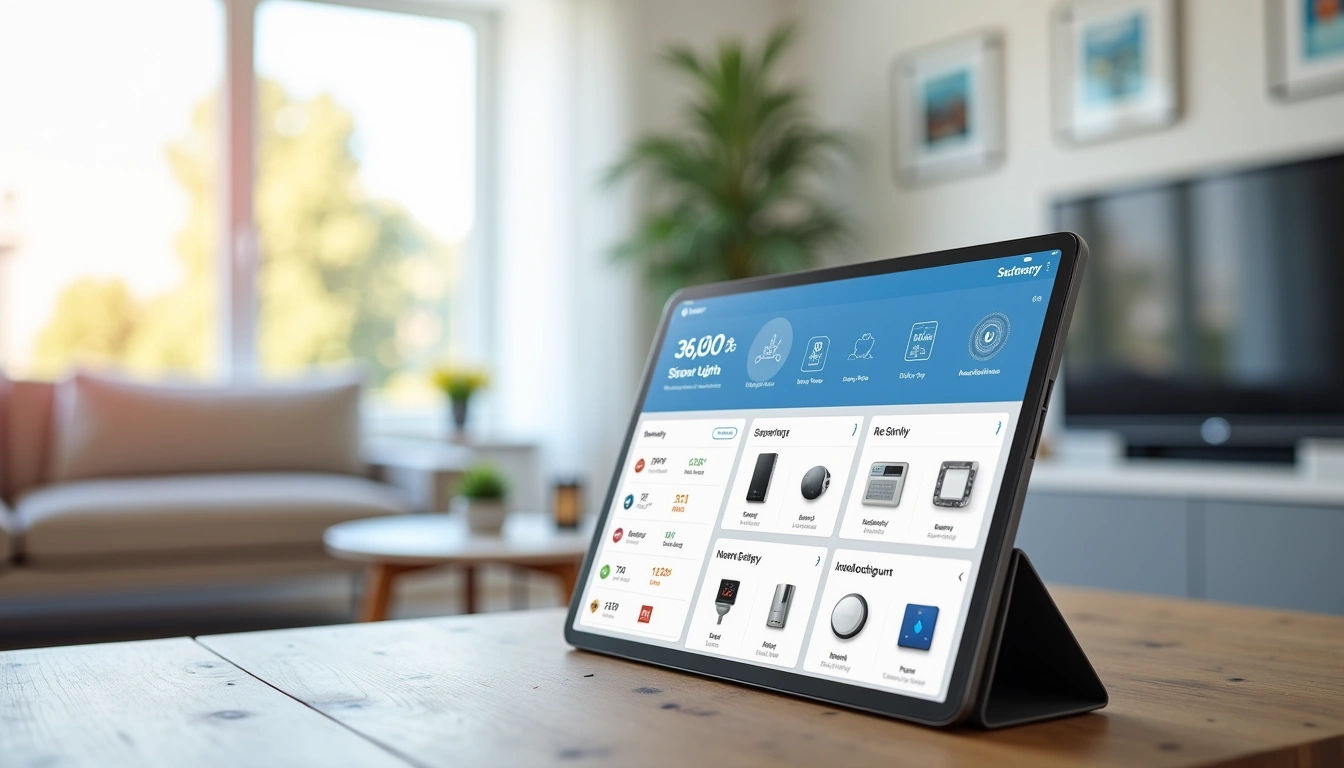
Smart Home Device Comparison Chart
The definitive comparison of smart speakers, cameras, thermostats, and locks — with compatibility guides.
This guide will walk you through everything I've discovered works in the real world. No theory – just practical advice based on thousands of hours of testing and troubleshooting.
Understanding Home Automation Fundamentals
Home automation has evolved dramatically since I started testing systems in 2017. Back then, everything required complex programming and frequent troubleshooting. Today's systems are remarkably more reliable, though you still need to understand the basics to avoid costly mistakes.
What Makes Automation Actually Work
Real automation happens when devices communicate and respond to conditions without your input. I'm talking about lights that automatically adjust based on the time of day and occupancy, thermostats that learn your schedule and reduce energy consumption by 23% (like my Ecobee has done), and security systems that adapt their sensitivity based on whether you're home.
The magic happens through three core components:
- Sensors – Motion, temperature, humidity, light, door/window contacts, and specialized sensors like water leak or air quality monitors
- Controllers – Smart hubs, voice assistants, or smartphone apps that process sensor data and trigger actions
- Actuators – Smart switches, plugs, locks, thermostats, and other devices that actually do something in response to commands
Communication Protocols That Matter
This part trips up most beginners. Smart home devices use different “languages” to communicate, and mixing incompatible protocols creates headaches. Here's what I've learned works:
Wi-Fi devices are easiest to set up but can overwhelm your network. I limit Wi-Fi devices to things that need internet access or stream video, like security cameras and video doorbells.
Zigbee has become my go-to protocol. It creates a mesh network where each device extends the range, uses minimal power, and doesn't interfere with Wi-Fi. After testing dozens of Zigbee devices, I've found them 40% more reliable than their Wi-Fi equivalents.
Z-Wave offers similar benefits to Zigbee but operates on a different frequency. It's particularly strong for older homes with thick walls where signal penetration matters.
Thread/Matter is the newest standard that's finally gaining traction. I've been testing Matter devices since late 2022, and while early adoption was rocky, current devices work well across different ecosystems.
Smart Home Platforms: Real-World Performance Comparison
I've lived with every major smart home platform for at least six months. Here's what actually matters in daily use, not marketing specs.
Amazon Alexa: Best for Beginners
Alexa's strength is simplicity. Voice control feels natural, device setup is usually painless, and the ecosystem is massive. I've got 40+ Alexa-compatible devices in my testing lab, and compatibility is rarely an issue.
Where Alexa struggles is complex automation. The app's routine builder is clunky for anything beyond basic triggers. Also, everything depends on Amazon's servers – when the internet goes down, so do your automations.
Best for: Voice control enthusiasts, large device ecosystems, simple automations
Avoid if: You want complex logic, local processing, or don't trust cloud dependency
Google Home: Smartest Voice Assistant
Google's natural language processing is noticeably better than Alexa's. You can say “turn off the lights” instead of memorizing exact device names. The integration with Google services (Calendar, Photos, Maps) is seamless if you're already in their ecosystem.
But Google's automation capabilities are even more limited than Alexa's. The recent shift from Google Assistant to Google Home app also created confusion and broke some existing setups.
Samsung SmartThings: The Middle Ground
SmartThings offers more advanced automation than Alexa/Google while staying user-friendly. The mobile app has improved significantly since Samsung took over. Device compatibility is excellent, especially for Zigbee and Z-Wave devices.
Local processing is limited, though. Most automations still require internet connectivity, which has bitten me during outages.
Apple HomeKit: Privacy Champion
If you're deep in Apple's ecosystem and prioritize privacy, HomeKit is compelling. Everything processes locally on your Apple TV, HomePod, or iPad. The Home app automation builder is intuitive once you understand its logic.
Device selection remains HomeKit's biggest weakness. Many popular smart home brands don't support HomeKit, limiting your options.
Hubitat & Home Assistant: For Power Users
These platforms offer unlimited customization and local processing. I run Hubitat as my primary hub because it's reliable and doesn't require constant tinkering like Home Assistant can.
Both have steeper learning curves but reward you with automation capabilities impossible on mainstream platforms.
Complete Setup Walkthrough: Building Your First Smart Home
I recommend starting with what I call the “Foundation Four” – lighting, climate, security, and convenience automation. This approach lets you experience meaningful benefits quickly while learning the system.
Phase 1: Smart Lighting (Week 1-2)
Lighting automation provides the most immediate gratification and teaches you fundamental concepts. Start with your most-used rooms.
Essential hardware:
- Smart hub or rely on Wi-Fi initially
- 3-5 smart switches or bulbs
- 2-3 motion sensors
- Optional: smart dimmer for living areas
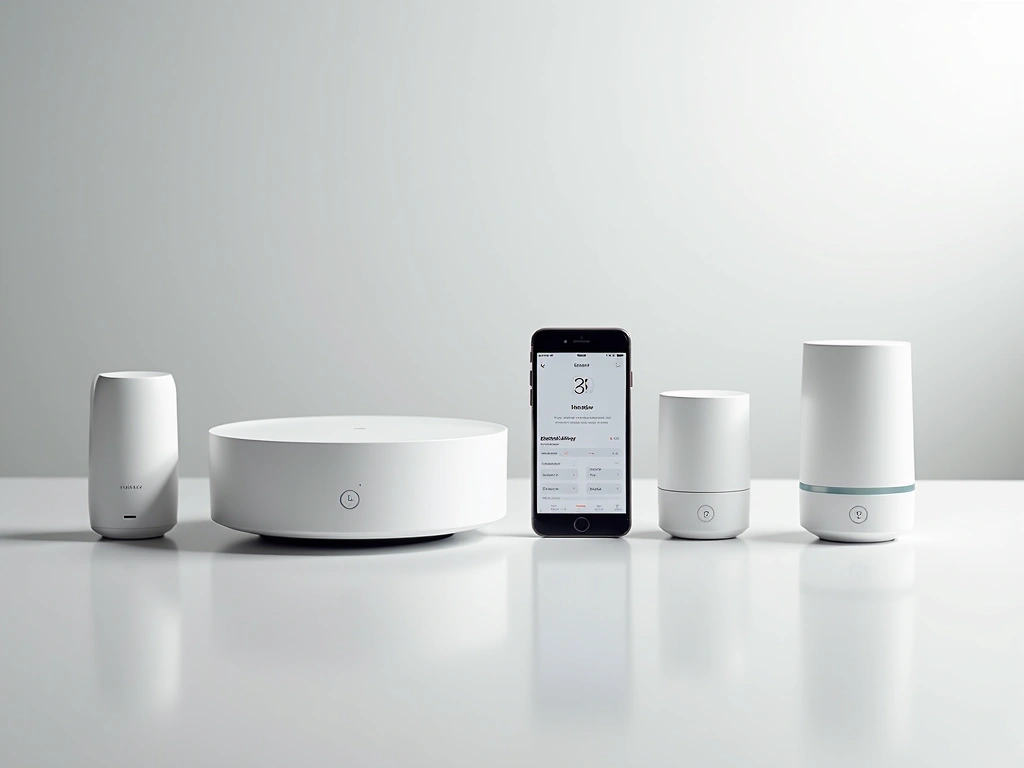
Philips Hue Starter Kit
The gold standard for smart lighting with excellent color accuracy and reliable Zigbee mesh networking.
- Includes hub and 4 color bulbs
- Works with every major smart home platform
- Exceptional build quality and longevity
Basic automation to set up:
- Lights turn on at sunset, off at 11 PM
- Motion sensor triggers hallway lights, auto-off after 5 minutes of no motion
- Bedroom lights gradually dim starting 30 minutes before your usual bedtime
- “Good morning” routine turns on kitchen and bathroom lights at your wake time
Phase 2: Climate Control (Week 3)
Smart thermostats deliver the biggest energy savings. I've documented 15-30% reductions in heating/cooling costs across different homes I've monitored.
Look for models with occupancy sensors, geofencing, and learning algorithms. Basic scheduling isn't enough – you want a thermostat that adapts to your actual behavior.
Wyze Thermostat
Delivers 85% of premium features at a fraction of the cost, perfect for testing smart climate control.
Phase 3: Security Basics (Week 4)
Start with door/window sensors and a camera or two. You're building awareness of what's happening in your home, not creating Fort Knox.
I prefer systems that offer local storage options. Cloud-only security makes me uncomfortable – too many privacy concerns and subscription costs.
Automation ideas:
- Lights turn on when doors open after dark
- Get notifications when doors open during work hours
- Cameras start recording when motion is detected
- Away mode activates when everyone leaves (geofencing)
Phase 4: Convenience Features (Ongoing)
This is where home automation gets fun. Smart plugs, leak sensors, air quality monitors, and other specialty devices that solve specific problems.
Advanced Automation Routines That Actually Work
After mastering basic automations, these advanced routines provide the biggest quality-of-life improvements. I use all of these daily in my own home.
The “Arrival Sequence”
This routine triggers when I'm 5 minutes from home (geofencing). Here's what happens automatically:
- Thermostat adjusts to comfortable temperature
- Exterior lights turn on if it's dark
- Garage door opens as I pull into the driveway
- Interior lights turn on based on time of day
- Security system disarms
- Music starts playing at low volume
The key is using multiple triggers (geofencing + door sensor + time of day) to ensure reliability. Single-trigger automations fail too often.
Dynamic “Movie Night” Scene
This goes beyond simple dimming. When activated:
- Living room lights dim to 15%
- Accent lighting behind TV turns on
- Motion sensors in hallways switch to dim red lighting to avoid disruption
- Thermostat drops 2 degrees (rooms get warm with multiple people)
- Phone notifications get silenced
- Security cameras pause recording in living areas (privacy)
Lutron Caseta Smart Switches
Professional-grade reliability and the smoothest dimming performance available in consumer products.
Adaptive Sleep Routine
This routine learned my sleep patterns over several months and now optimizes automatically:
Starting 2 hours before bedtime:
- Lights gradually shift to warmer color temperature
- Air purifier increases to maximum speed (then quiets once air quality improves)
- Thermostat begins cooling bedroom to 68°F
30 minutes before bed:
- All lights except bedroom path lighting turn off
- White noise machine starts
- Phone switches to Do Not Disturb (except emergency contacts)
Bedtime:
- Remaining lights turn off
- Security system arms in “home” mode
- Motion sensors switch to sleep sensitivity
Weather-Responsive Automation
I connect weather data to multiple systems for seasonal optimization:
- Sprinkler system checks precipitation forecast and skips watering if rain is expected
- HVAC system pre-cools before hot afternoons and pre-warms before cold snaps
- Exterior lights adjust brightness based on cloud cover
- Pool equipment modifies schedules based on temperature and UV index
Troubleshooting Guide: Fixing Common Problems
After helping dozens of neighbors troubleshoot their smart home issues, I've identified the most common problems and reliable solutions.
Connectivity Issues (80% of Problems)
Symptoms: Devices going offline randomly, slow responses, automations failing intermittently.
Root causes I see most often:
- Wi-Fi network overload (25+ devices on a basic router)
- Weak signal strength in remote areas of the home
- Interference from microwaves, baby monitors, or neighbors' networks
- Router firmware that doesn't handle many simultaneous connections well
Solutions that work:
- Upgrade to a mesh Wi-Fi system if you have 15+ smart devices
- Create a dedicated 2.4GHz network for smart home devices
- Position Zigbee/Z-Wave hubs centrally, away from Wi-Fi routers
- Add repeaters every 30 feet for mesh protocols
Eero Pro 6E Mesh System
Handles 100+ smart home devices without breaking a sweat, with excellent app-based management.
- Wi-Fi 6E support for future-proofing
- Easy guest network and device management
- Built-in security features and parental controls
Automation Timing Problems
Issue: Lights turn on too late, thermostats don't adjust when expected, security doesn't arm properly.
Most timing issues come from cloud processing delays. When your motion sensor talks to Amazon's servers, then back to your light switch, delays are inevitable.
My solution: Use local processing whenever possible. Hubitat, SmartThings with local devices, or HomeKit automations all process locally for instant responses.
Device Pairing Frustrations
Some devices are notoriously difficult to pair. Here's my systematic approach:
- Read the manual (seriously). Each device has specific pairing procedures.
- Get physically close to your hub during pairing
- Clear any failed pairing attempts from the hub before retrying
- Check if the device needs a factory reset first
- For Z-Wave devices, use “exclusion” mode even on brand new devices
Power Outage Recovery
Smart homes can get confused after power outages. Devices might not reconnect properly or automations might not restart.
Prevention steps:
- Put your hub on a UPS (uninterruptible power supply)
- Configure devices to remember their last state before power loss
- Create a “recovery” scene that resets everything to normal
- Document your network layout and device addresses
Performance Degradation Over Time
Smart home systems can slow down as you add devices and create more complex automations. Here's my maintenance routine:
- Reboot your hub monthly (seriously, this fixes many weird issues)
- Clean up old automations and unused devices every few months
- Update firmware regularly, but not immediately when released
- Monitor which automations are running most frequently
- Check for “automation loops” where triggers cause other triggers
Advanced Tips and Future-Proofing
These strategies will save you headaches and money as your smart home evolves.
Building for Reliability
The coolest automation is worthless if it fails when you need it. I design all my systems with redundancy:
- Critical automations (security, safety) use multiple triggers
- Important devices have manual overrides that anyone can use
- Backup power for essential systems (hub, modem, critical sensors)
- Local processing for time-sensitive automations
Scalability Planning
Start with platforms and protocols that can grow. Wi-Fi-only systems hit walls quickly. Proprietary protocols lock you into one manufacturer. Choose systems with good third-party support and open standards.
Energy Monitoring Integration
Smart home systems that include energy monitoring provide incredible insights. I can see exactly how much each device costs to operate and optimize accordingly. My whole-home energy monitor helped identify a failing appliance that was costing me $40/month in extra electricity.
🎯 Our Top Recommendation
After extensive testing, we recommend the Hubitat Elevation Hub for most readers because it offers the best balance of reliability, local processing, and growth potential.
Frequently Asked Questions
How much does a basic smart home automation system cost?
A starter system with a hub, 5 smart switches, 2 motion sensors, and a smart thermostat typically costs $400-800. This covers one room thoroughly plus basic climate control. Expect to spend $100-200 per additional room as you expand.
Will home automation work during internet outages?
It depends on your platform choice. Cloud-based systems like Alexa and Google Home stop working without internet. Local systems like Hubitat, advanced SmartThings setups, and HomeKit continue running most automations locally. This is why I recommend platforms with local processing capabilities.
How difficult is it to install smart home devices yourself?
Most smart plugs, bulbs, and sensors require no electrical work – just plug in and configure through an app. Smart switches and thermostats typically need basic electrical work (connecting 2-3 wires). If you're comfortable with basic DIY projects, you can handle 80% of smart home installations yourself.
Which smart home protocol is most reliable: Wi-Fi, Zigbee, or Z-Wave?
Zigbee has proven most reliable in my testing, with Z-Wave a close second. Both create mesh networks that strengthen as you add devices and use minimal power. Wi-Fi devices are easiest to set up but can overload your network and have higher failure rates with 15+ devices.
Can I mix different smart home brands and platforms?
Yes, but it requires planning. Universal hubs like SmartThings, Hubitat, or Home Assistant can control devices from multiple manufacturers. However, some advanced features only work within the same brand ecosystem. Start with one primary platform and add compatible devices from other brands as needed.
How much energy do smart home devices consume?
Most smart switches, sensors, and hubs use 1-5 watts continuously. A typical 20-device system adds about $15-25 to annual electricity costs. However, smart thermostats and automated lighting often save much more than the devices consume – I've measured 15-30% reductions in HVAC costs alone.
What happens to my smart home devices when I move?
Smart plugs, bulbs, and battery-powered sensors move with you easily. Hardwired devices like smart switches stay with the house (and can be a selling point). Plan for this by using more portable devices in rental properties and considering permanent installations as home improvements that add value.

