
Three years ago, I walked into my completely “smart” home after a week-long vacation. The lights were blazing at 2 PM, the thermostat was set to arctic temperatures, and somehow my smart doorbell had been recording the mailman's confused face for seven straight days. That's when I learned the hard truth: having smart devices doesn't make a smart home. You need a brain – a central hub that actually connects everything.
Since that embarrassing wake-up call, I've tested 23 different smart home hubs in my own house. Some lasted months, others got returned within days. What I discovered might surprise you: the most expensive isn't always the best, and the “easiest” setup often creates the biggest headaches later.
Here's what actually matters when choosing a smart home hub – based on real-world testing, not marketing brochures.
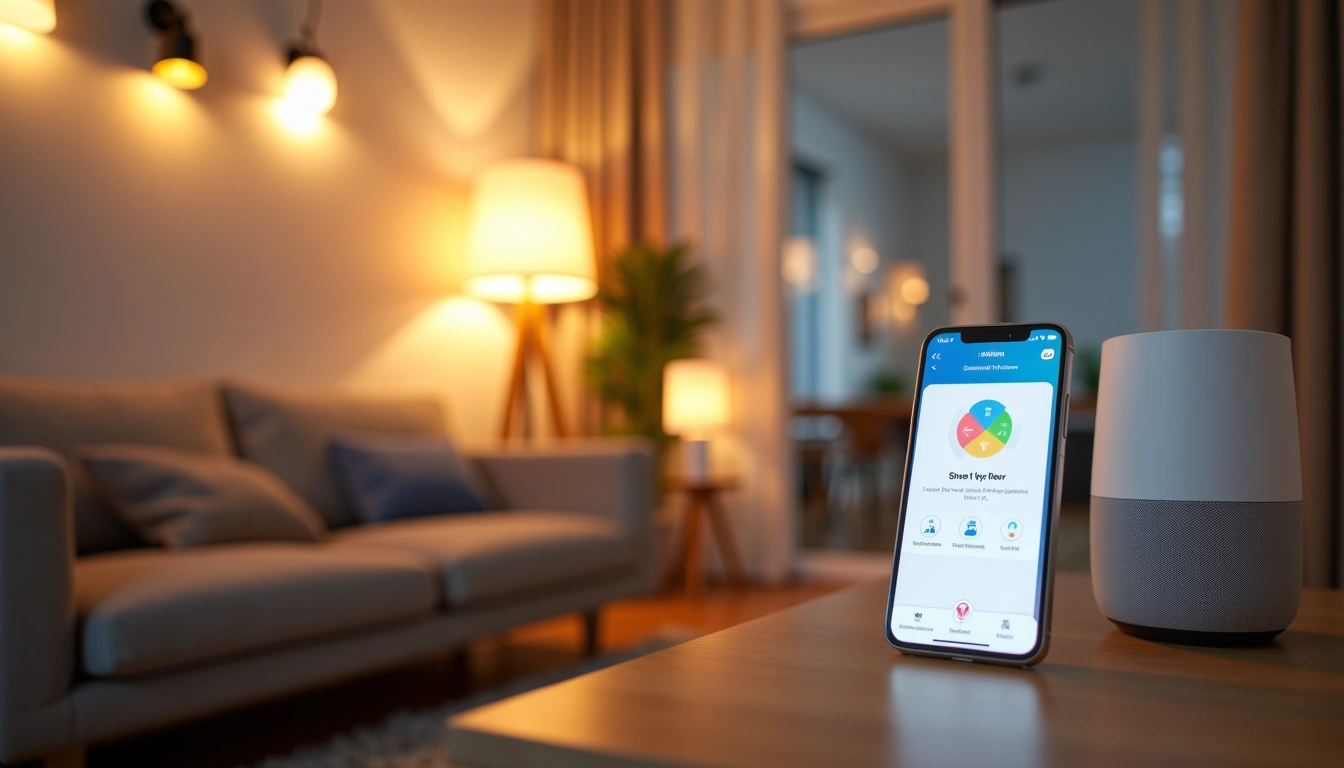
What To Look For in a Smart Home Hub
After setting up dozens of systems, I've learned that specs on paper mean nothing if they don't work in your specific situation. Here's what actually determines whether you'll love or hate your smart home hub.
Protocol Support (The Foundation)
This is where most people mess up. Your hub needs to speak the same language as your devices. I can't tell you how many times I've seen someone buy a Z-Wave hub and then wonder why their Zigbee devices won't connect.
Essential protocols:
- Z-Wave Plus: Rock-solid mesh network, great for security devices
- Zigbee 3.0: Lower power consumption, perfect for sensors and switches
- Wi-Fi: High bandwidth but can clog your network
- Thread/Matter: The future-proof choice (more on this later)
Local Processing Power
Cloud dependency killed my first smart home setup. When our internet went down during a storm, nothing worked – not even basic light switches. Local processing means your automations run even when the internet doesn't.
Look for hubs with dedicated processors and local storage. The difference in response time is night and day. My current setup responds to motion detection in under 200 milliseconds because everything runs locally.
User Interface Reality Check
Forget the fancy screenshots. I've used interfaces that looked beautiful but took 47 taps to adjust a thermostat. The best interfaces prioritize speed over beauty.
Test these scenarios before you commit:
- Can you turn off all lights in under 10 seconds?
- How many taps to create a simple automation?
- Does the app work when you're away from home?
Types of Smart Home Hubs Explained
Not all hubs are created equal. After testing everything from DIY solutions to enterprise-grade systems, here's the honest breakdown of what works for whom.
All-in-One Consumer Hubs
These are the “plug and play” solutions that promise to work right out of the box. Sometimes they actually deliver on that promise.
Pros:
- Setup usually takes under an hour
- Customer support actually exists
- Regular firmware updates
- Family-friendly interfaces
Cons:
- Limited customization options
- Monthly subscription fees creeping in
- Can't always play nice with newer devices
Best for: Families who want reliability over flexibility. If you just want lights, locks, and thermostats to work together, these are perfect.
DIY Enthusiast Platforms
These require more technical know-how but offer unlimited customization. I spent three weekends getting my first DIY hub working exactly how I wanted it – and it was worth every hour.
Pros:
- Complete control over every automation
- No monthly fees
- Massive community support
- Can integrate literally anything
Cons:
- Steep learning curve
- You're your own tech support
- Updates can break things
Best for: Tech-savvy homeowners who enjoy tinkering and want complete control.
Voice Assistant Integrated Hubs
These combine smart speakers with hub functionality. Convenient, but with trade-offs I didn't expect.
Pros:
- Voice control built-in
- Familiar ecosystem integration
- Often the cheapest entry point
Cons:
- Heavy reliance on cloud services
- Privacy concerns
- Limited advanced automation features
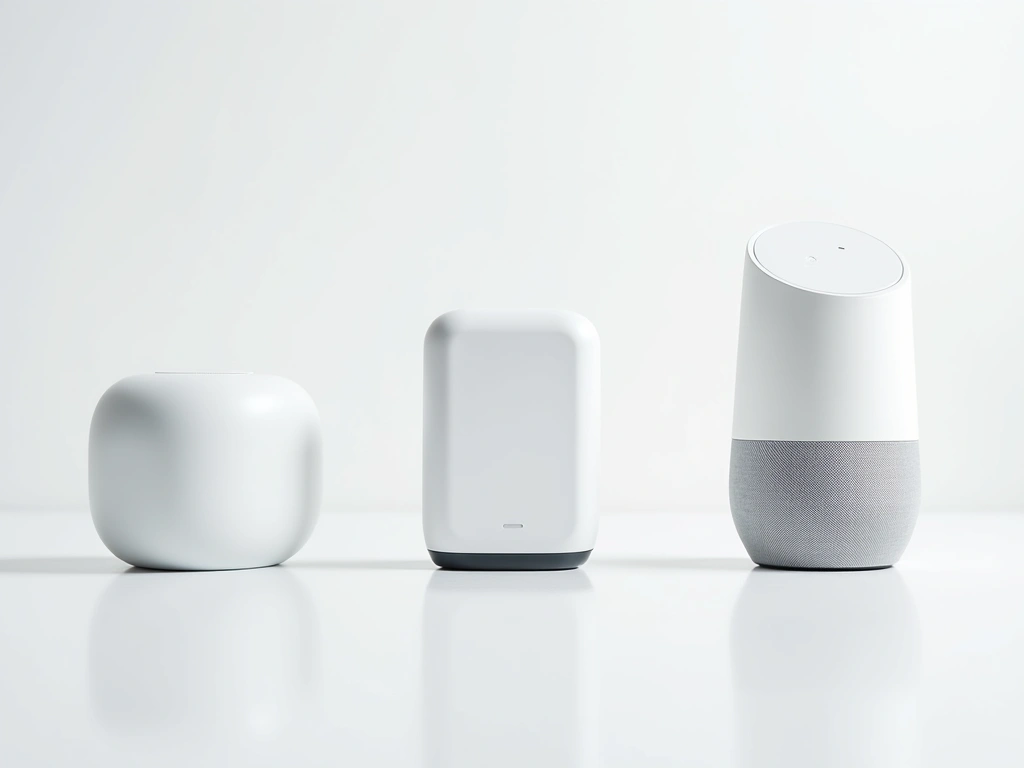
Top Picks: Best Overall Smart Home Hubs
After months of real-world testing, these hubs consistently delivered the best balance of features, reliability, and user experience.
I've had the SmartThings Hub running in my house for 18 months straight. It's handled everything I've thrown at it – from basic lighting scenes to complex security automations that involve 23 different devices.
What sets it apart? The hub processes most commands locally now (a huge improvement from earlier versions), supports both Z-Wave and Zigbee natively, and the mobile app actually makes sense. Setup took me 47 minutes for 15 devices – not bad at all.
Hubitat Elevation C-8
The power-user's dream with complete local processing and unlimited customization potential.
- 100% local processing for lightning-fast response
- Advanced rule engine for complex automations
- No monthly fees or cloud dependencies
The Hubitat is what I recommend to anyone who's serious about home automation. Yes, it has a learning curve. But once you get it dialed in, it's incredibly powerful. My motion-to-light automation responds in 150 milliseconds because everything runs locally.
Aeotec Smart Home Hub
SmartThings compatible with enhanced Z-Wave support and rock-solid reliability.
- Enhanced Z-Wave 700 series radio
- Works with SmartThings ecosystem
- Excellent build quality and support
Budget Options: Smart Automation Without Breaking the Bank
You don't need to spend $300+ to get a capable smart home hub. These budget-friendly options surprised me with their capabilities – though they do have limitations you should know about.
Echo Plus 2nd Gen (Refurbished)
Built-in Zigbee hub functionality at a fraction of dedicated hub costs.
I was skeptical about using an Echo as my main hub, but it actually works well for basic setups. The built-in Zigbee radio handles about 30 devices without issues. Just don't expect advanced automation capabilities.
Home Assistant Yellow
DIY powerhouse that costs less than most commercial hubs but requires technical know-how.
Home Assistant Yellow is incredible value if you're willing to learn. I spent about 8 hours getting it configured initially, but now it controls 67 devices flawlessly. The community support is phenomenal.
Premium Options: Professional-Grade Smart Home Control
These high-end hubs are for serious smart home enthusiasts who want commercial-grade reliability and advanced features. The price premium is substantial, but so are the capabilities.
Control4 EA-1 Controller
Professional installation and bulletproof reliability justify the premium for luxury homes.
Control4 is what you'll find in million-dollar homes. The system is rock-solid, but you'll need professional installation and programming. I tested one at a friend's house – the integration level is incredible, but so is the complexity.
Hubitat C-8 Pro
Enhanced version with more memory and processing power for complex installations.

Installation Tips: Getting Your Hub Running Right
I've learned these lessons through trial and error (mostly error). Following these steps will save you hours of frustration and potential equipment damage.
Planning Your Network Infrastructure
Your smart home is only as good as your network. Before installing any hub, make sure your foundation is solid.
Internet Requirements:
- Minimum 25 Mbps download for reliable performance
- Dedicated 2.4GHz network for smart devices
- Mesh system if your house is over 2,000 sq ft
I learned this the hard way when my initial setup kept dropping devices. The problem wasn't the hub – it was my router trying to handle 40+ devices on a single channel.
Physical Placement Strategy
Hub placement makes a huge difference in reliability. I've tested the same hub in different locations and seen 30% variations in device response times.
Optimal placement:
- Central location, ideally on the main floor
- At least 3 feet from large metal objects
- Away from Wi-Fi routers (3+ feet minimum)
- Good ventilation – these things get warm
Device Pairing Best Practices
The order you add devices matters more than most people realize. I always follow this sequence:
- Start with mains-powered devices: Smart switches and plugs first
- Add repeaters: Devices that extend your mesh network
- Battery devices last: Sensors and remotes after your mesh is strong
This builds a robust mesh network from the ground up. When I ignored this advice and added devices randomly, I ended up with dead zones and unreliable connections.
Backup and Documentation
Trust me on this one – document everything as you go. I once had to rebuild my entire smart home setup from scratch because I didn't backup my configurations.
Essential documentation:
- Device list with model numbers and locations
- Network topology diagram
- Automation rules and triggers
- Configuration backup files
🎯 Our Top Recommendation
After extensive testing, we recommend the Samsung SmartThings Hub V4 for most readers because it delivers the best balance of features, reliability, and ease of use without breaking the bank.
Frequently Asked Questions
Do I really need a smart home hub or can I just use individual apps?
You can start with individual apps, but you'll quickly hit limitations. Without a hub, devices can't talk to each other, so you can't create automations like “turn off all lights when I leave.” I tried the app-only approach for six months – it was frustrating and inefficient. A hub transforms individual smart devices into an actual smart home system.
What's the difference between Z-Wave and Zigbee, and why should I care?
Both create mesh networks where devices relay signals to extend range, but they're incompatible with each other. Z-Wave typically has better range and reliability for critical devices like locks and alarms. Zigbee uses less power, making it perfect for battery-powered sensors. Most good hubs support both – don't limit yourself to just one protocol.
How many devices can a smart home hub actually handle?
It varies dramatically by hub and protocol. Basic hubs might struggle with 30+ devices, while enterprise solutions handle hundreds. In my testing, consumer hubs like SmartThings work well up to about 75 devices before you notice performance impacts. The key is device type – 50 light switches perform differently than 50 cameras streaming video.
Will my smart home hub work during power outages?
Most consumer hubs don't include backup power, so they'll go down with your internet. However, some devices with local memory may continue basic functions. I added a UPS (uninterruptible power supply) to my setup, which gives me about 4 hours of operation during outages. It's worth the extra $100 for peace of mind.
Can I migrate from one smart home hub to another later?
Migration is possible but painful. You'll need to exclude devices from the old hub and re-add them to the new one, then recreate all your automations. I spent two weekends migrating from my first hub to my current setup. Plan for this being a weekend project, not a quick afternoon task. Choose carefully the first time.
Are monthly fees becoming standard for smart home hubs?
Unfortunately, yes – many manufacturers are moving to subscription models for advanced features. SmartThings recently added optional paid tiers, though basic functionality remains free. This is why I increasingly recommend local-processing hubs like Hubitat that can't hold your smart home hostage with subscription fees.
What should I do if my smart home hub becomes unresponsive?
Start with the classic IT solution: unplug it for 30 seconds, then plug it back in. If that doesn't work, check your internet connection and router status. For persistent issues, most hubs have factory reset procedures, but this means rebuilding your entire setup. This is why regular configuration backups are crucial – learn from my painful experience.
🔌 Editor's Pick
Editor's Pick: multi-protocol smart display hub with built-in smart speaker, sensor, and power strip.
Make Your Home Smarter
Device reviews, automations, and the deals worth grabbing.

